
Agentic phone screens use your job description and candidate resumes to conduct AI-powered phone interviews and evaluate candidate fit. This helps streamline early-stage screening and prioritize qualified candidates faster.
Note: To run agentic phone screens, you must opt in and enable the Phone Screening AI feature in your account settings.
Create a new job
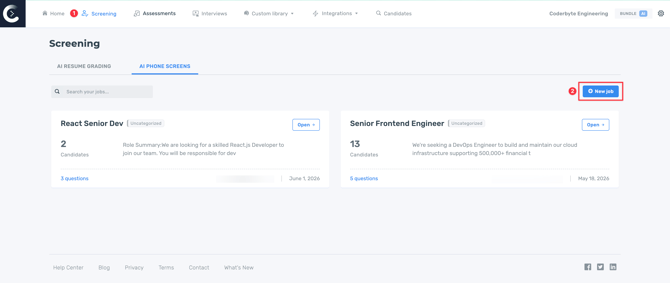
To begin, navigate to Screening in the main navigation bar, then click New job.
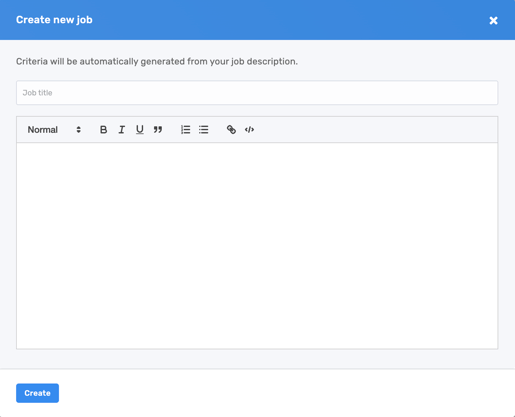
A modal will appear allowing you to add a job title and the job description.
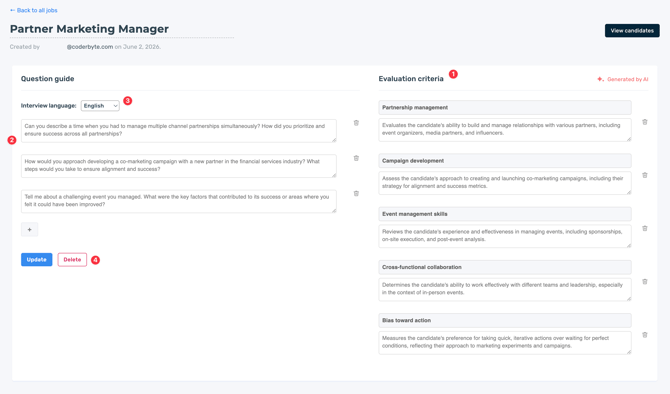
Upon clicking Edit job, you can:
-
Modify the AI-generated evaluation criteria
-
Add and edit the interview questions
-
Change the interview language to English, Polish, Portuguese, or Spanish
-
Delete the job entirely
Inviting candidates
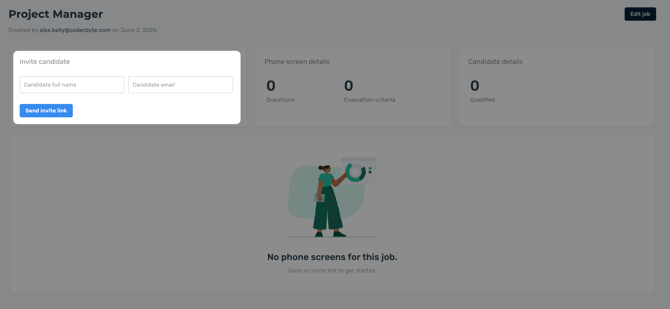
Once a job has been created, invite candidates and see their results. Candidates can complete agentic phone screens from either a desktop browser or a mobile device.
A dropdown list of your candidates will appear along with the following information:
- Candidate name
- Candidate email address
- Date phone screen was sent or candidate joined
- Candidate status
- Final score
- Number of criteria met
- Time duration of the phone screens
- View report
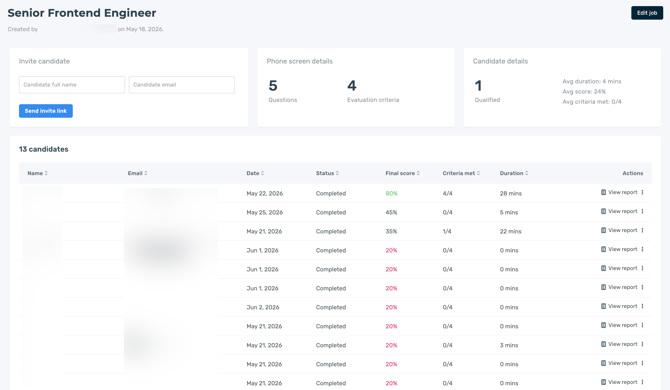
Click View report in the candidate's profile to access the grading report overview.