
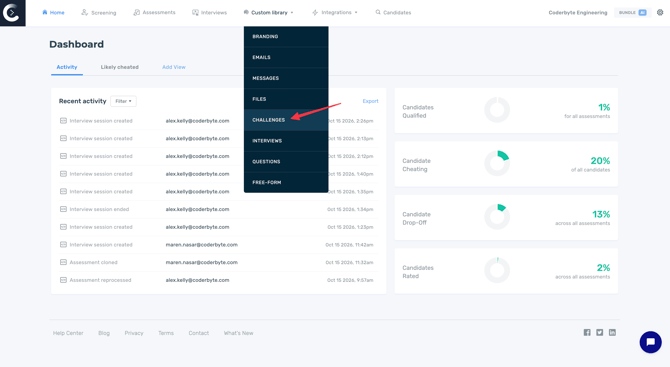
You can add an ungraded custom challenge to any assessment. To create an ungraded custom challenge on Coderbyte, navigate to your custom challenge library by clicking Custom library and then Challenges.
You can create an ungraded project or an ungraded spreadsheet challenge. For instructions to create a custom ungraded spreadsheet challenge, click here. Otherwise, continue for instructions on creating a custom ungraded project.
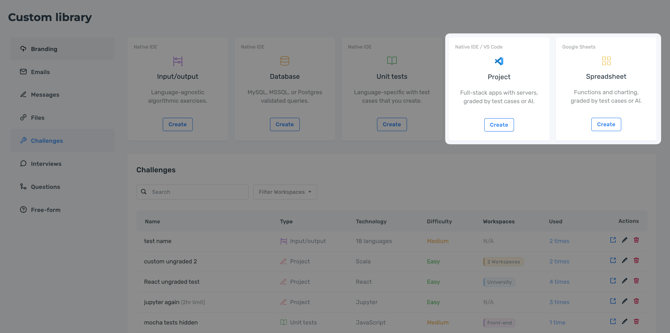
Upon selecting the Project challenge type, a modal will appear with two options:
- Native IDE (recommended): Pre-installed packages and frameworks with built-in AI grading and cheating detection.
- VS Code IDE (advanced): Set up your project from scratch, or clone from GitHub, and install required libraries. Learn more here.
In the IDE, you can add the following components:
- Instructions for the challenge
- File-tree structure
- Starter code
- AI grading (disabled)
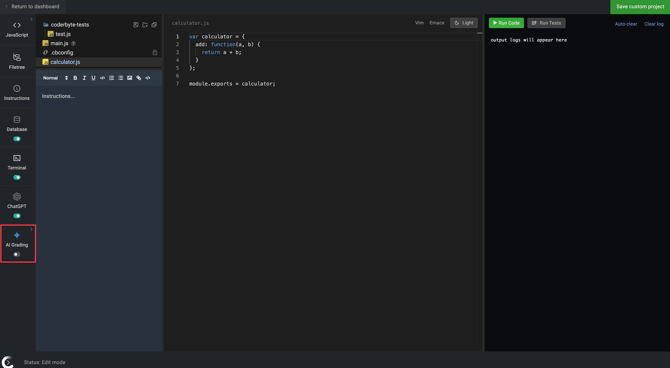
Unlike graded custom challenges, ungraded challenges should have AI grading disabled. This allows you to create even more real-world, multi-step prompts and evaluate candidates accordingly. Their work will be recorded and watchable afterward.
Grade or override challenge scores
After a candidate completes an assessment, you can manually assign a score to an ungraded challenge from their candidate report. You can also override the score for any graded challenge.
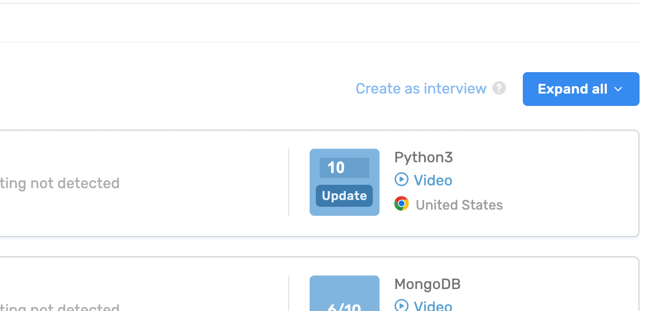
Click the challenge score, enter a new score, and click Update. When a score is manually changed, a Grade edited label appears next to the score.