
You’ve been invited to a live technical interview on Coderbyte. This guide explains how to prepare, what you’ll see when you join, how the editor works, and how to use AI assistance if your interviewer allows it.
Every company sets up its interviews differently, so some features below may not appear in your session. If you’re unsure what’s allowed, ask your recruiter or interviewer before you start.
Before your interview
-
Use a desktop browser. Join from a laptop or desktop with an up-to-date browser and a stable internet connection.
-
Turn off ad blockers and AI browser extensions. These can stop the interview from working properly. Some companies also block screenshots from AI apps, extensions and browsers during the session.
-
Check your camera and microphone. If you’re expected to be on video, click Turn on webcam and allow access when your browser asks.
-
Ask about AI use in advance. Your interviewer decides whether you can use AI tools and which ones. Don’t use outside AI tools unless you’ve been told you may.
Joining the interview
-
Open the interview link (a URL) in your browser. You may get it in advance, such as in a calendar invite, or your interviewer may share it when the interview starts.
-
If asked, enter your name and email and accept the consent message.
-
Click Join the interview. This tells your interviewer you’re ready.
-
Wait in the lobby until your interviewer lets you in.
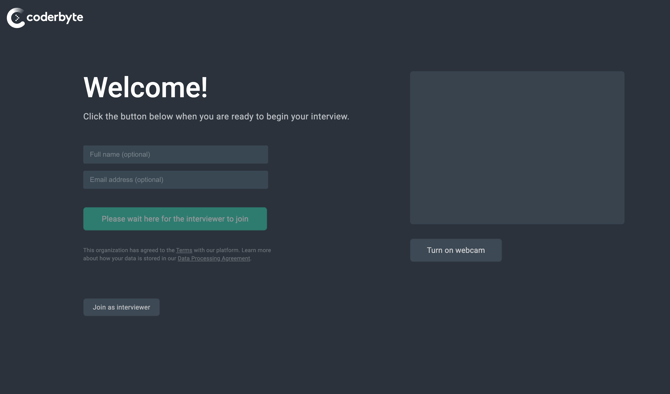
If you refresh the page or are removed from the session, you’ll return to the lobby and your interviewer can let you back in.
How the Coderbyte editor works
Once you join the interview, the live editor is split into five main parts:
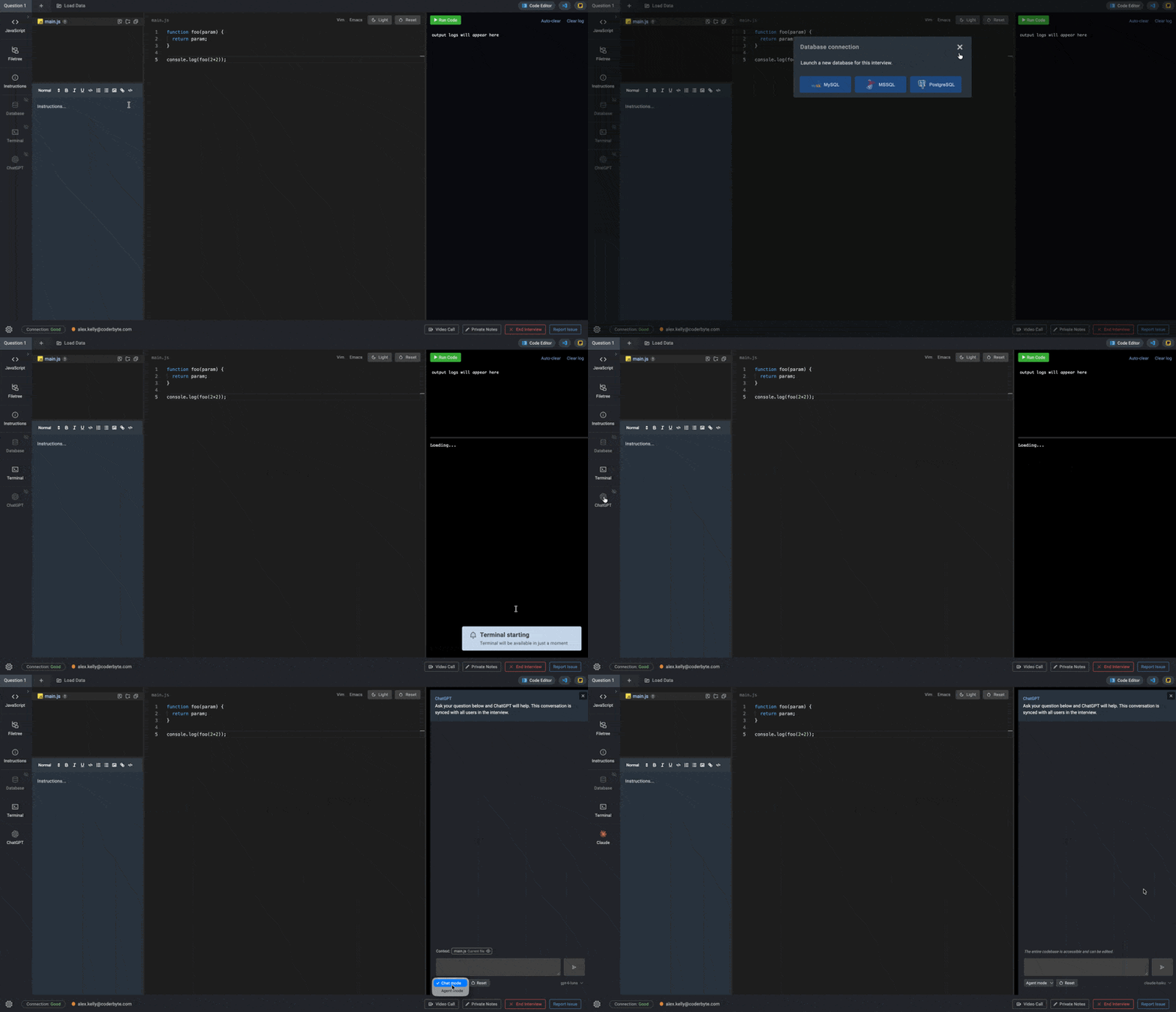
- Left navigation bar: Change languages, show or hide the filetree and instructions, turn on a database or terminal, and open the AI assistant.
-
Filetree and instructions: Read the prompt from your interviewer. Add, remove and duplicate files, and type notes in the instructions box.
-
Code editor: Write code. Switch between light and dark mode, or turn on Vim or Emacs keybindings.
-
Output logs and terminal: Run your code and see the output.
-
AI assistant (if allowed): Opens on the right when you click the AI icon. Ask questions, choose a model, and add files as context.
Using AI assistance
Your interviewer decides whether you can use AI models such as ChatGPT and Claude in the editor. It may be on from the start, turned on partway through, or disabled.
If you’re not sure which applies, ask your interviewer. Using AI tools outside the Coderbyte editor is not allowed unless your interviewer says otherwise.
In VS Code interviews, you may also be able to use Codex, Claude Code, or the built-in AI assistant panel.
Interviewers who allow AI want to see how you work with it, so talk through your prompts and check what the AI produces.
Other tools your interviewer may use
Your interviewer can switch the session to a different workspace at any time. Don’t be surprised if the screen changes to one of these:
-
Whiteboard for diagrams and system design
-
Spreadsheet for data or analysis questions
-
Jupyter Notebook for data science work
-
VS Code editor for larger, multi-file projects
Troubleshooting
| Problem | What to try |
|
Your changes aren’t syncing, or you see a disconnected message |
Reload the page. You’ll return to the lobby and your interviewer can let you back in. |
|
The editor or video won’t load |
Turn off ad blockers and AI browser extensions, then reload. |
|
Your camera or microphone isn’t working |
Check your browser’s site permissions, then click Turn on webcam again. |
|
You can’t find the AI icon |
AI may be off for your interview. Ask your interviewer. |