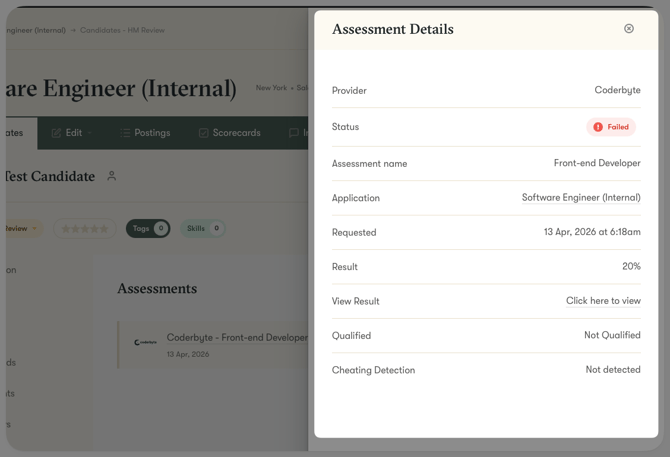
There are two ways to integrate Coderbyte with Pinpoint:
- You can use Coderbyte Integrations to automate most common tasks like sending assessment invites, posting reports to candidate profiles, or advancing candidates to stages based on their performance.
- Use Coderbyte's Pinpoint Plugin to manage assessment directly in Pinpoint dashboard.
Integration via Coderbyte Automations
Step 1: First, make sure that you have the API add-on enabled.
Step 2: In Coderbyte, navigate to Integrations -> ATS and select Pinpoint. Enter your Pinpoint subdomain in the first field:
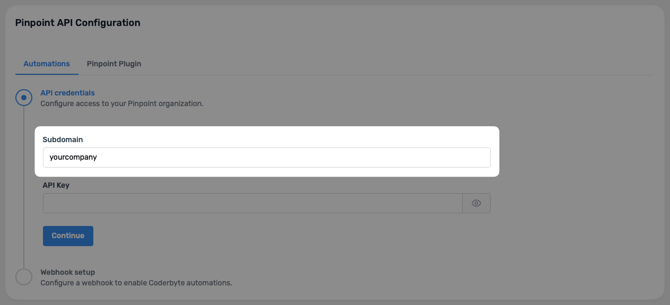
Your subdomain is the first part of the URL of your Pinpoint dashboard. For example, if you access Pinpoint via https://yourcompany.pinpointhq.com, your subdomain is "yourcompany".
Step 3: Refer to this Pinpoint support article on how to create a new Pinpoint API Key.
When creating the API Key, make sure to select the following permissions:
- Application: Read/Write
- Candidate: Read/Write
- Candidate Assessment: Read/Write
- Comment: Write
- Hiring Workflow: Write
- Job: Read
- Talent Pipeline: Read
- User: Read
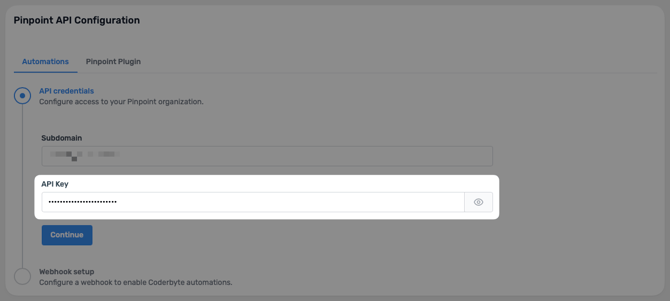
Step 4: Paste that newly created API key in the API Key field in Coderbyte and click Continue.
Step 5: In order to receive notifications from Pinpoint, we need a webhook to be set up between Pinpoint and Coderbyte.
Please follow instructions in this article to create a webhook for Coderbyte in your Pinpoint account.
Use the webhook details provided in the Coderbyte dashboard:
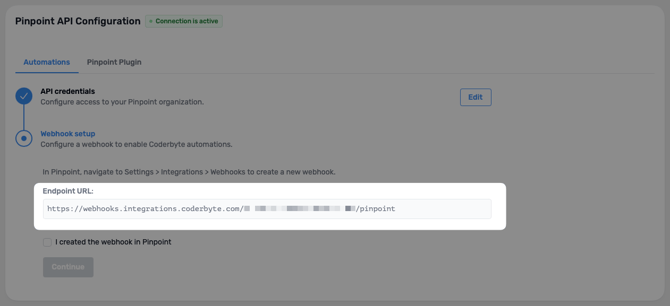
Make sure to provide exactly the same Endpoint URL as displayed in the dashboard.
Step 6: In Coderbyte, check the "I created the webhook in Pinpoint" box and click Continue.
Step 7: You can now create Workflows to automate tasks between Coderbyte and Pinpoint.
Integration via Pinpoint Plugin
Step 1: First, make sure that you have the API add-on enabled.
Step 2: In Coderbyte, navigate to Integrations -> ATS and select Pinpoint.
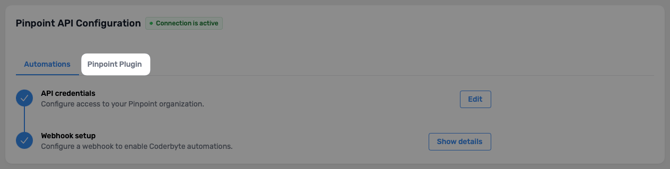
Step 3: Select the Pinpoint Plugin tab:
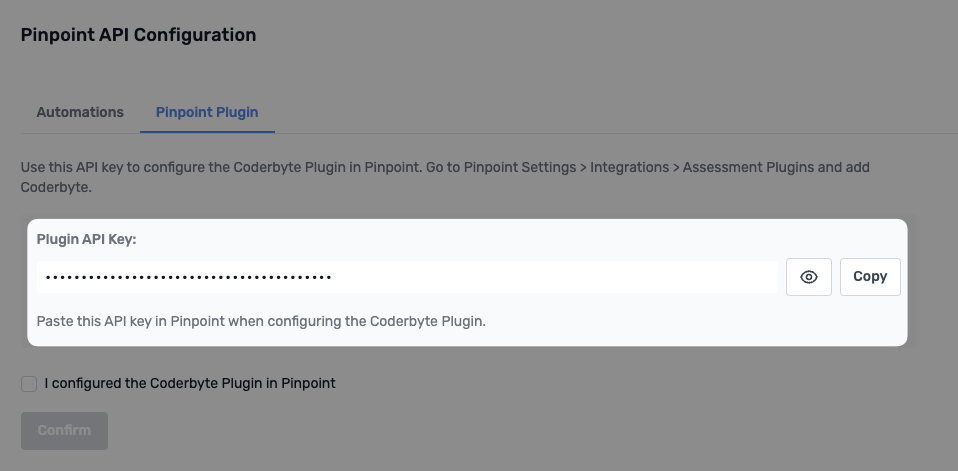
Step 4: Copy the Plugin API Key to your clipboard:
Step 5: Navigate to Pinpoint Settings -> Integrations and find the Coderbyte plugin.
Step 6: In the "Coderbyte API Key" field paste the previously copied key and click Save.
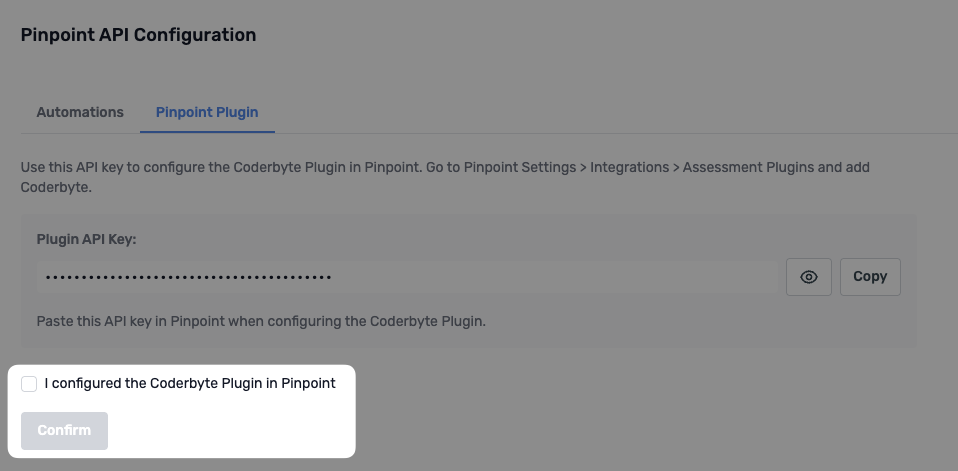
Step 7: In Coderbyte, check the "I configured the Coderbyte Plugin in Pinpoint" and click Confirm.
Using the Coderbyte Pinpoint Plugin
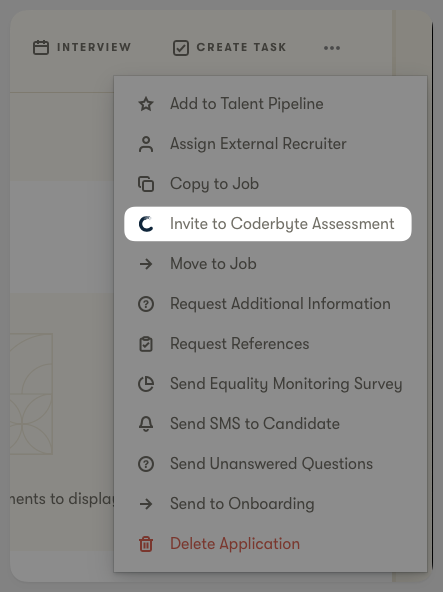
Step 1: Open a candidate profile in Pinpoint and select "Invite to Coderbyte Assessment" in the menu:
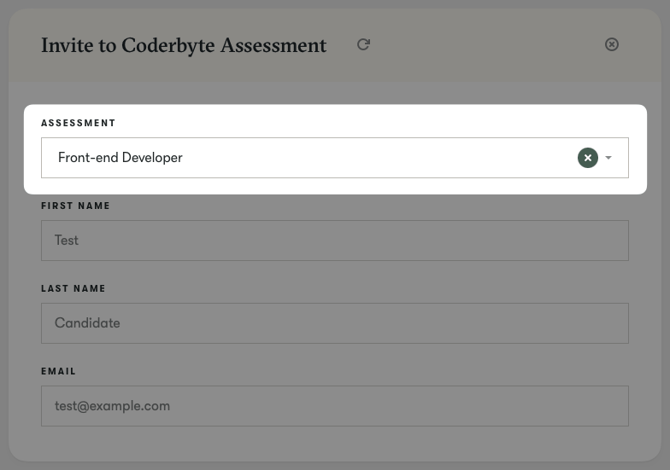
Step 2: From the list of your Coderbyte assessments, select the assessment that you want to invite the candidate to. The name and email fields are already prefilled by the system and cannot be changed:
Step 3: Click Submit.
Step 4: The assessment will be displayed in Pinpoint as Pending.
Step 5: Once the candidate submits the assessment, view the result by clicking on the Assessment item: