
If you want to use a custom mp3, .mp4, .mov, or any other file across your custom challenges, multiple choice, free-form, or interview questions, you'll first need to upload a custom file.
How to upload a file
Navigate to Custom library and then Files.
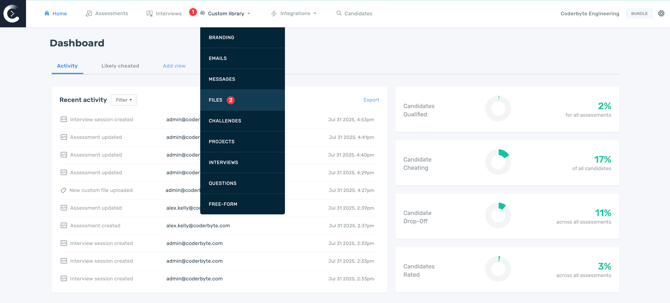
Click Upload File and select the corresponding file type or Other.
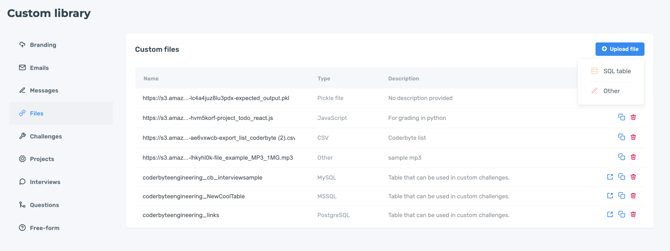
All files have a file limit of 10 MB and will be prefixed with your organization's name.
How to add a file to custom challenges or questions
Example .mp3 file
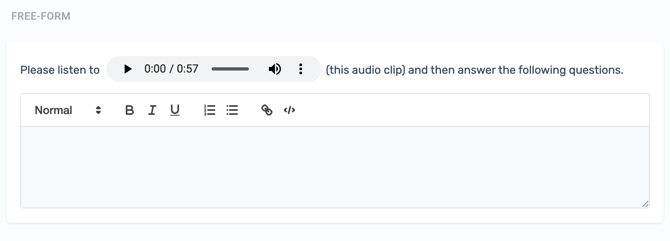
First add the audio file to your Files, then hyperlink the same file to your multiple-choice or free-form question.
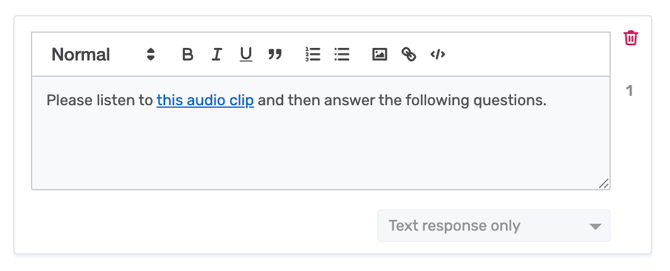
The audio file will appear in line with your text.
Example .mp4/.mov file
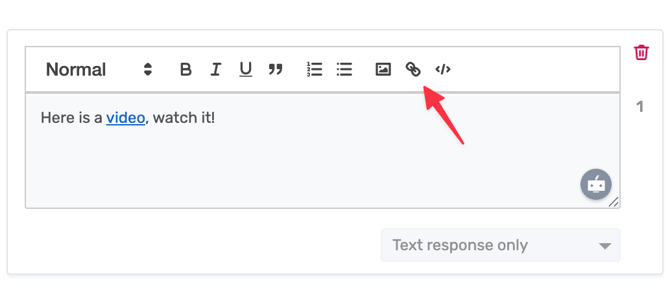
First add the video file to your Files, then hyperlink the same file to your multiple-choice or free-form question.
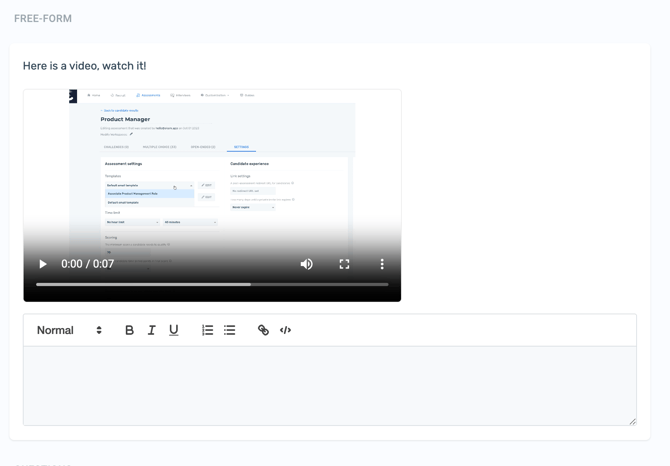
The video file will appear after the text.
Looking to upload other files?
Learn more here on how to upload and use a custom JSON, CSV, SQL table, or any other file in your custom challenges or interview questions.