Webcam proctoring helps maintain assessment integrity by monitoring candidate activity and flagging potentially suspicious behavior. When enabled for an assessment, candidates are prompted to turn on their webcam before starting, and flagged activity can be reviewed in the candidate report.
Note: Webcam proctoring is available with the Premium Analytics & proctoring add-on and is included by default in Bundle annual and Enterprise plans.
Before enabling webcam proctoring for an assessment, the account owner must first ensure that the feature is enabled under AI Features in your account settings.
During the assessment, the system will monitor for various irregularities, including:
-
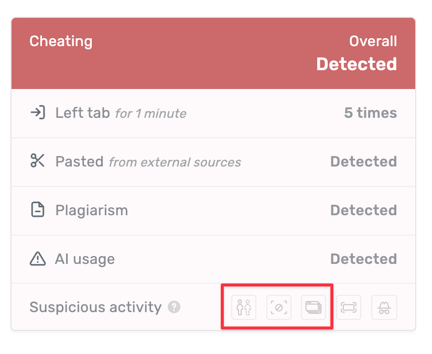
- No one visible
- Multiple people appearing
- External devices detected
- Frequently looking away
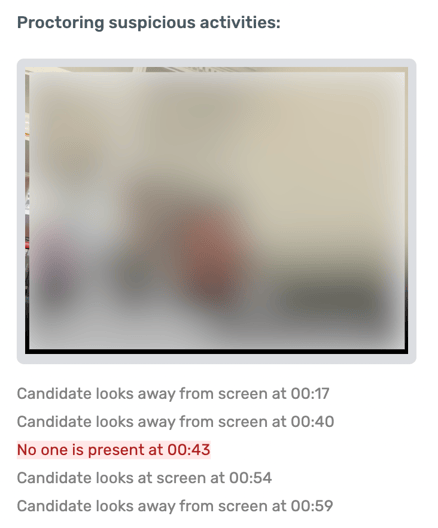
Once the assessment is submitted, detected events will be flagged in the candidate’s report, along with captured images of the suspected activity and a time marker of when the activity occurred.
Enabling webcam proctoring
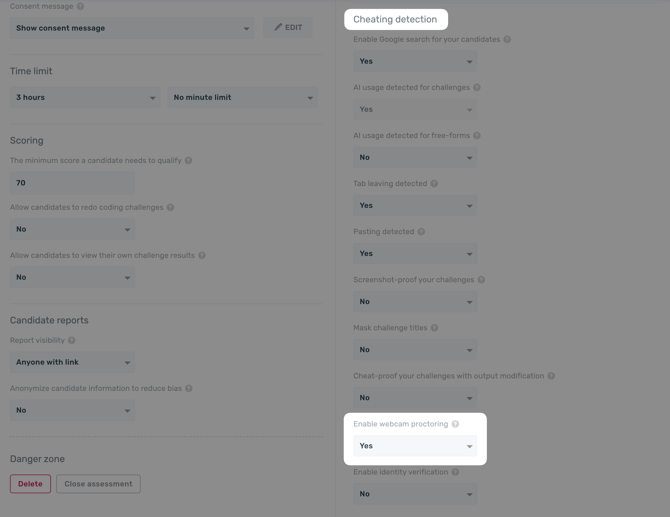
To turn on webcam proctoring, first enable the AI feature in your account settings, then edit any assessment, and navigate to the settings tab. Under the Cheating detection section, select Yes for Enable webcam proctoring.
Candidate report
If any irregularities are detected, the candidate's report will display the captured images of the screen and their corresponding time markers under the Challenge solution section.